
Client details
See a client's contact info, sessions, notes and payments, and change their details.
Tap any name on the Clients tab to open that client’s page. It’s the one place to see everything about a person.
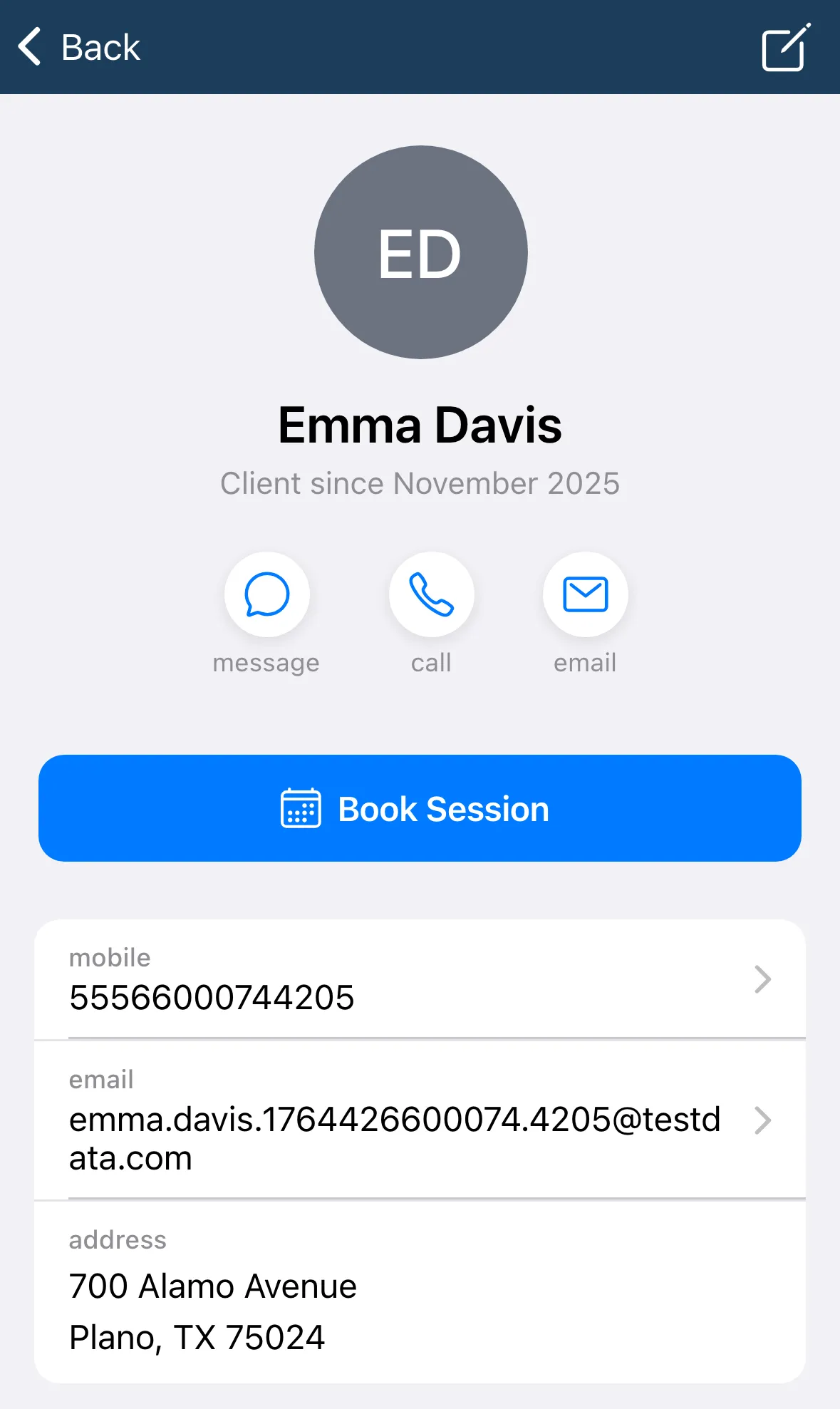
What’s on the page
Section titled “What’s on the page”- At the top. Their name and Client since, plus message, call and email buttons. Book Session starts a new appointment for them.
- Info cards. mobile, email and address, then birthday or age range, gender and skill level. Your own custom fields show here too.
- Session stats. total sessions and last session.
- SMS Outreach. Shows Opted In or Opted Out. Turn the switch off for a client who doesn’t want group texts. They’re then skipped in Client Outreach.
Sessions, Notes and Payments
Section titled “Sessions, Notes and Payments”Three tabs sit under the cards.
-
Sessions lists Upcoming Sessions and Previous Sessions with the type, date, location and status.
-
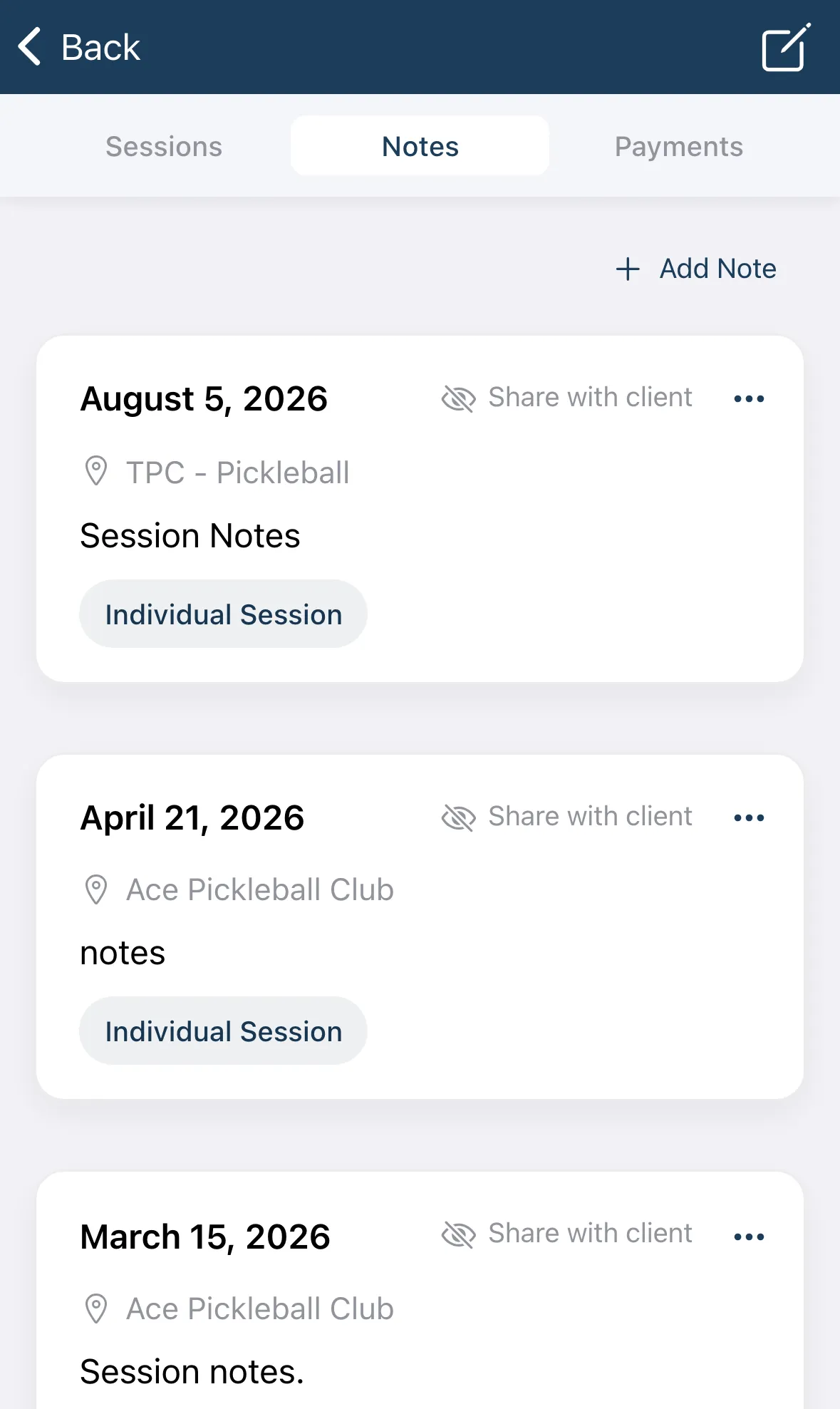
Notes holds your notes about this client. Tap Add Note to write one. A session note has Share with client if you want them to see it.
-
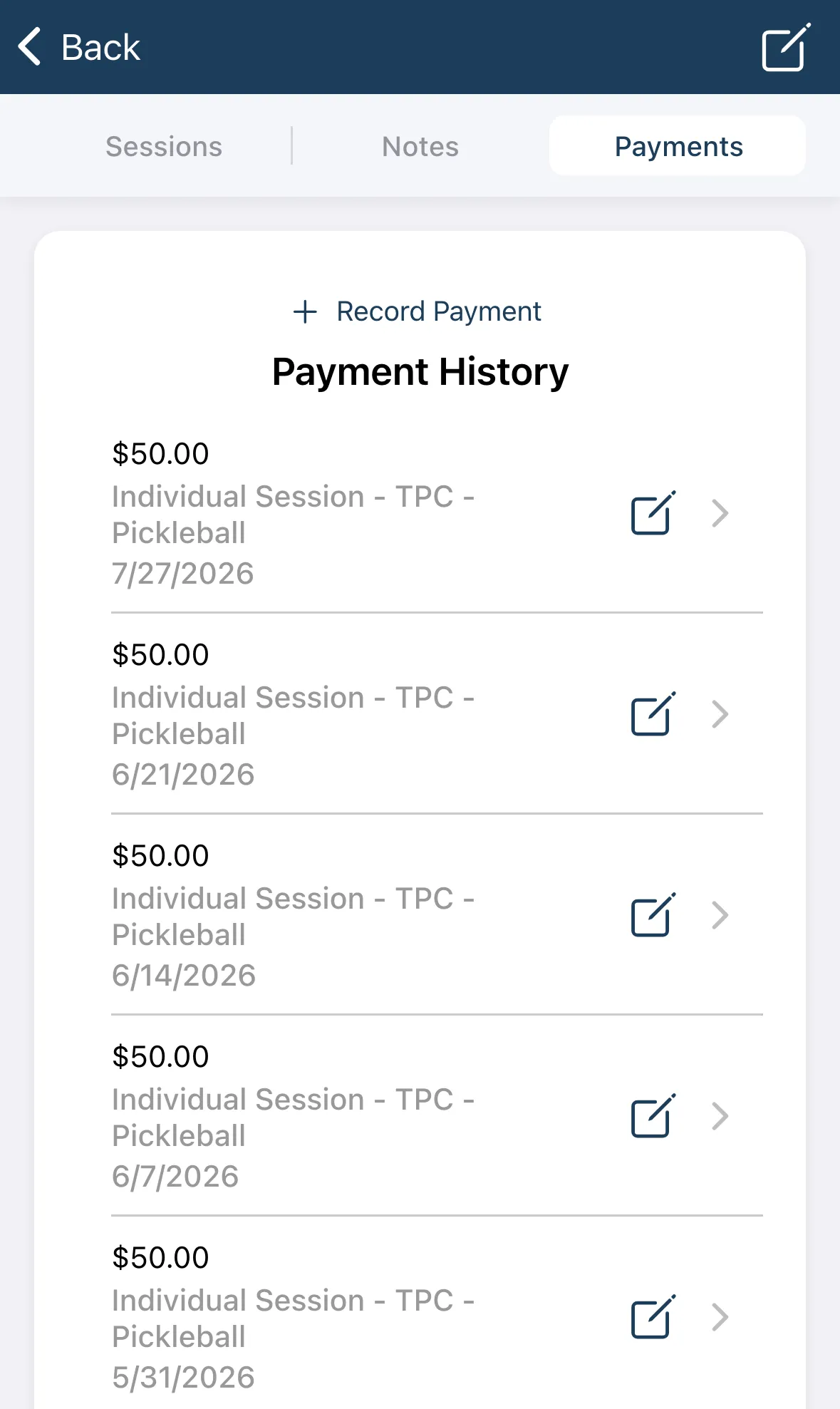
Payments shows Payment History. Tap Record Payment to log money a client paid you, such as cash.
Change a client’s details
Section titled “Change a client’s details”- Tap the edit icon at the top right of the client’s page.
- Change what you need. The form is the same one you used to add the client.
- Tap the button at the bottom to save.