
How clients reschedule or cancel
What your clients can change on their own, and how you're told when they do.
Clients manage their own bookings from a link, so you don’t have to field every change by text. They don’t sign in to do it.
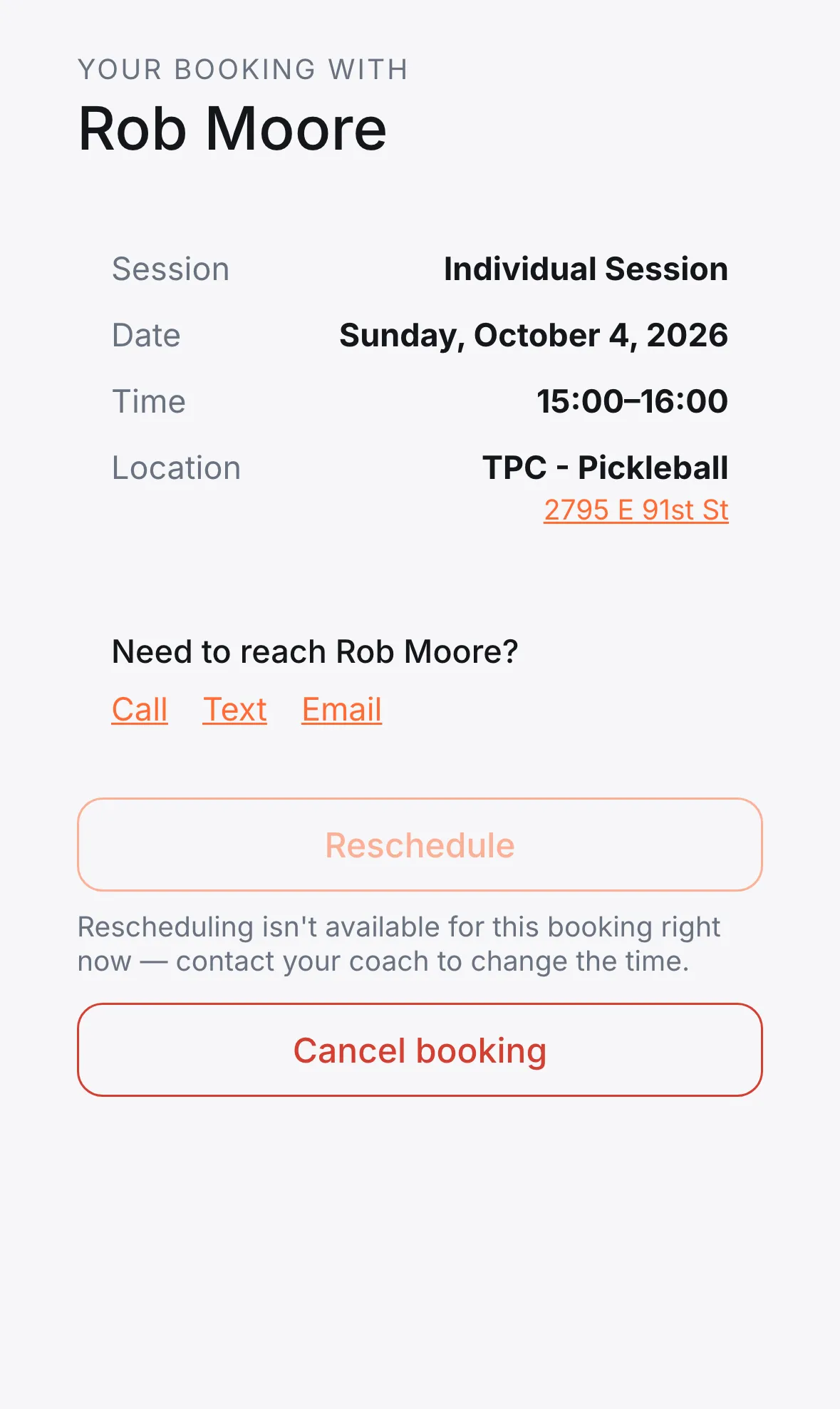
What clients see
Section titled “What clients see”The page opens with Your booking with and your name. It lists the session type, date, time and location (with a map link), and a Need to reach card with Call, Text and Email for you.
Below that are two buttons:
- Reschedule opens a calendar of your open times. The client picks a new time and confirms. The location stays the same, because rescheduling only changes when you meet.
- The cancel button asks the client to confirm first, and lets them add a note for you.
A few rules apply:
- A request you haven’t approved yet can be cancelled but not rescheduled. The page says so.
- If Reschedule can’t be used, the page tells the client to contact you to change the time.
- A booking that was cancelled, declined or already finished shows a banner instead. Declined and finished bookings offer Book Another Time.
How you’re told
Section titled “How you’re told”When a client reschedules or cancels:
- You get a push notification on your phone: Booking Rescheduled or Booking Cancelled. If you require approval and the new time needs it, you get Booking Needs Approval instead.
- You get a text message too, as long as SMS alerts for bookings are on in your notification settings.
- Your Calendar shows the new time.
After a reschedule, the client gets a confirmation text.
If you need to change a booking yourself
Section titled “If you need to change a booking yourself”You can move or cancel any booking from your Calendar. The client is texted automatically.