
Set your availability
Set the weekly hours and locations clients can book you for.
Your availability decides which days and times show on your booking page. Clients can only book inside these slots, at the locations you pick for each one. Anything already booked, or blocked off, is left out.
Add availability
Section titled “Add availability”-
Tap the menu, then Settings, then Availability.
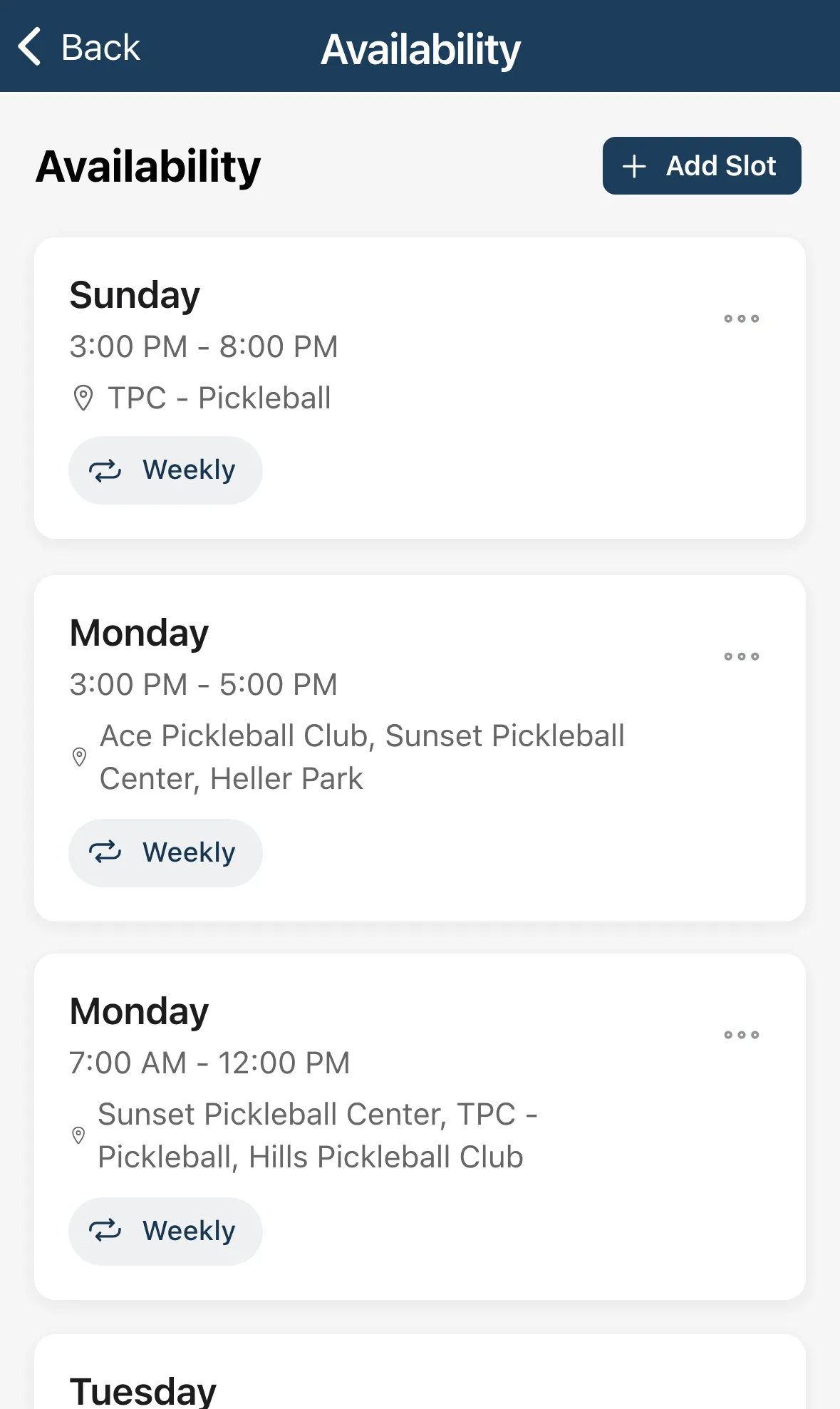
-
Tap Add Slot.
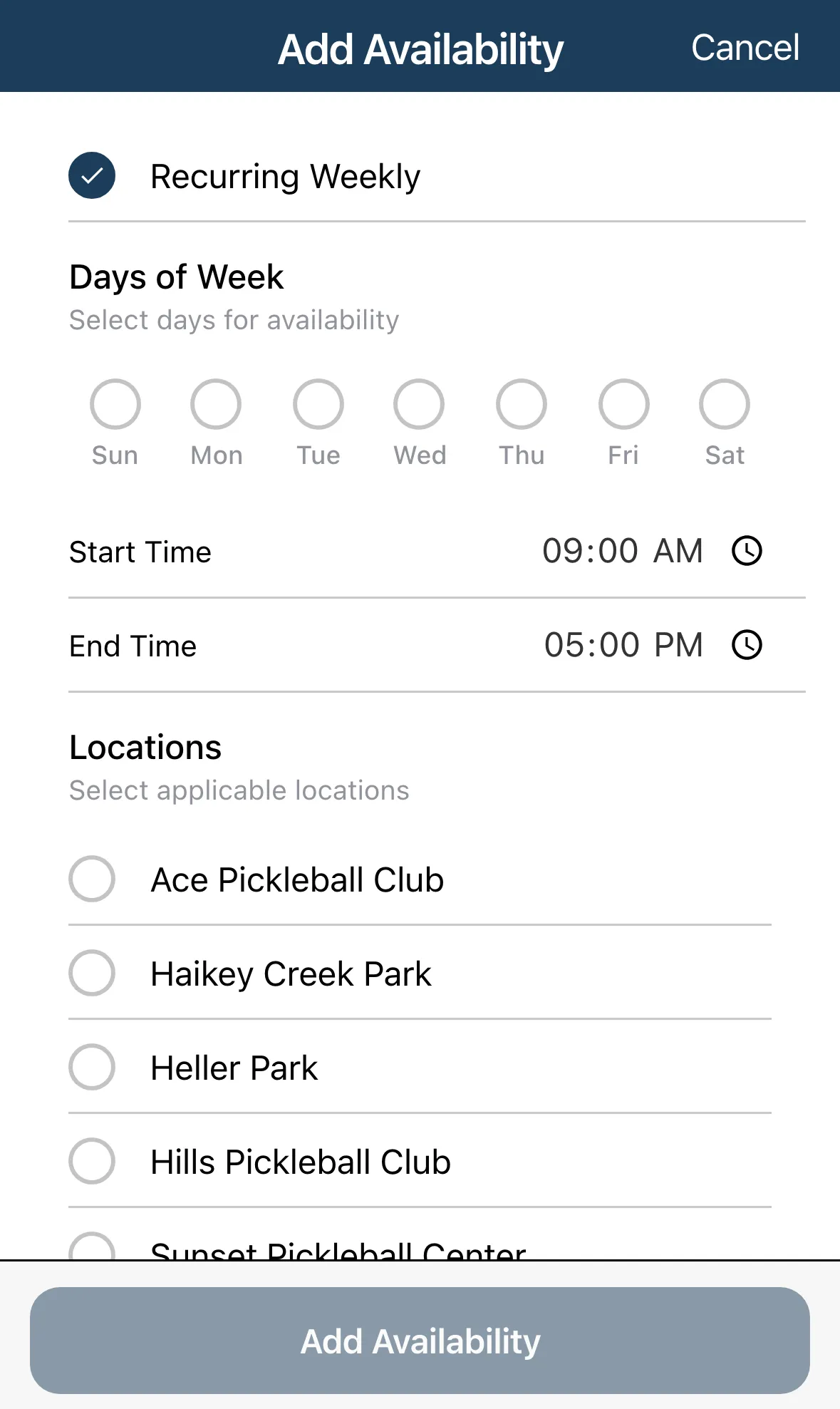
-
Leave Recurring Weekly on and tick the Days of Week this applies to. Turn it off to set one Date instead.
-
Set the Start Time and End Time.
-
Under Locations, tick each place you’ll coach during this time. Add places first in Teaching Locations.
-
Tap Add Availability.
Each card shows a Weekly or One-time badge, the hours and the locations. Pick several days to add them all at once.
Change or remove a slot
Section titled “Change or remove a slot”Tap a slot to edit it. Editing changes one day, so to cover more days with the same hours add a new slot. Tap the … button for Edit or Delete.