
Notifications
Choose which alerts you get on your phone, set quiet hours, and control the texts sent to you and your clients.
Notifications keep you on top of bookings without opening the app. Changes save as soon as you make them, so there is no Save button.
Open Notification Settings
Section titled “Open Notification Settings”-
Tap the menu, then Settings, then Notifications.
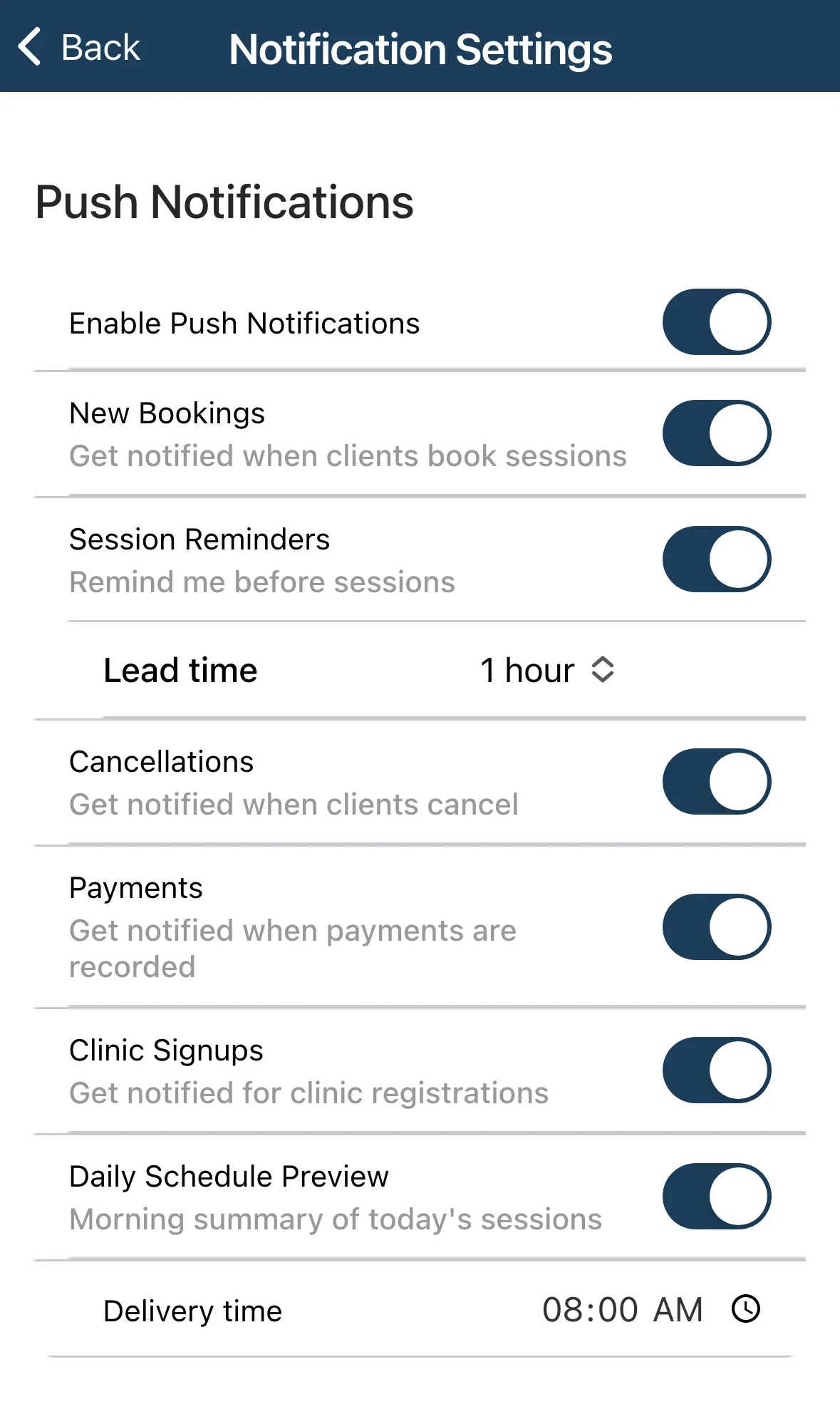
-
Turn the toggles on or off.
Push Notifications
Section titled “Push Notifications”Turn on Enable Push Notifications first. While it is off, the toggles below it are greyed out.
| Toggle | You get an alert when |
|---|---|
| New Bookings | A client books a session. |
| Session Reminders | A session is coming up. Choose a Lead time of 15 minutes, 30 minutes, 1 hour or 2 hours. |
| Cancellations | A client cancels. |
| Payments | A payment is recorded. |
| Clinic Signups | Someone registers for a clinic. |
| Daily Schedule Preview | Each morning, with a summary of today’s sessions. Pick the Delivery time. |
Quiet Hours
Section titled “Quiet Hours”Turn on Enable Quiet Hours to suppress all notifications overnight. Set the Start and End times. The defaults are 22:00 to 07:00.
SMS Notifications
Section titled “SMS Notifications”These toggles control text messages. They are separate from push notifications.
| Toggle | What it does |
|---|---|
| Notify me of new bookings via SMS | Texts you when a client books. |
| Notify clients when I book for them | Texts the client when you add an appointment for them. |
| Send reminders to clients | Texts clients before their session. Choose a Lead time of 1, 2, 4, 12 or 24 hours. |