
Manage blocked times
See every block on your schedule in one list, add repeating blocks and delete one date or a whole series.
Blocked times keep clients from booking you, for lunch, a day off or a trip. This list shows all of them in one place. You can also add a single block from the calendar: see Block off time.
Add a blocked time
Section titled “Add a blocked time”-
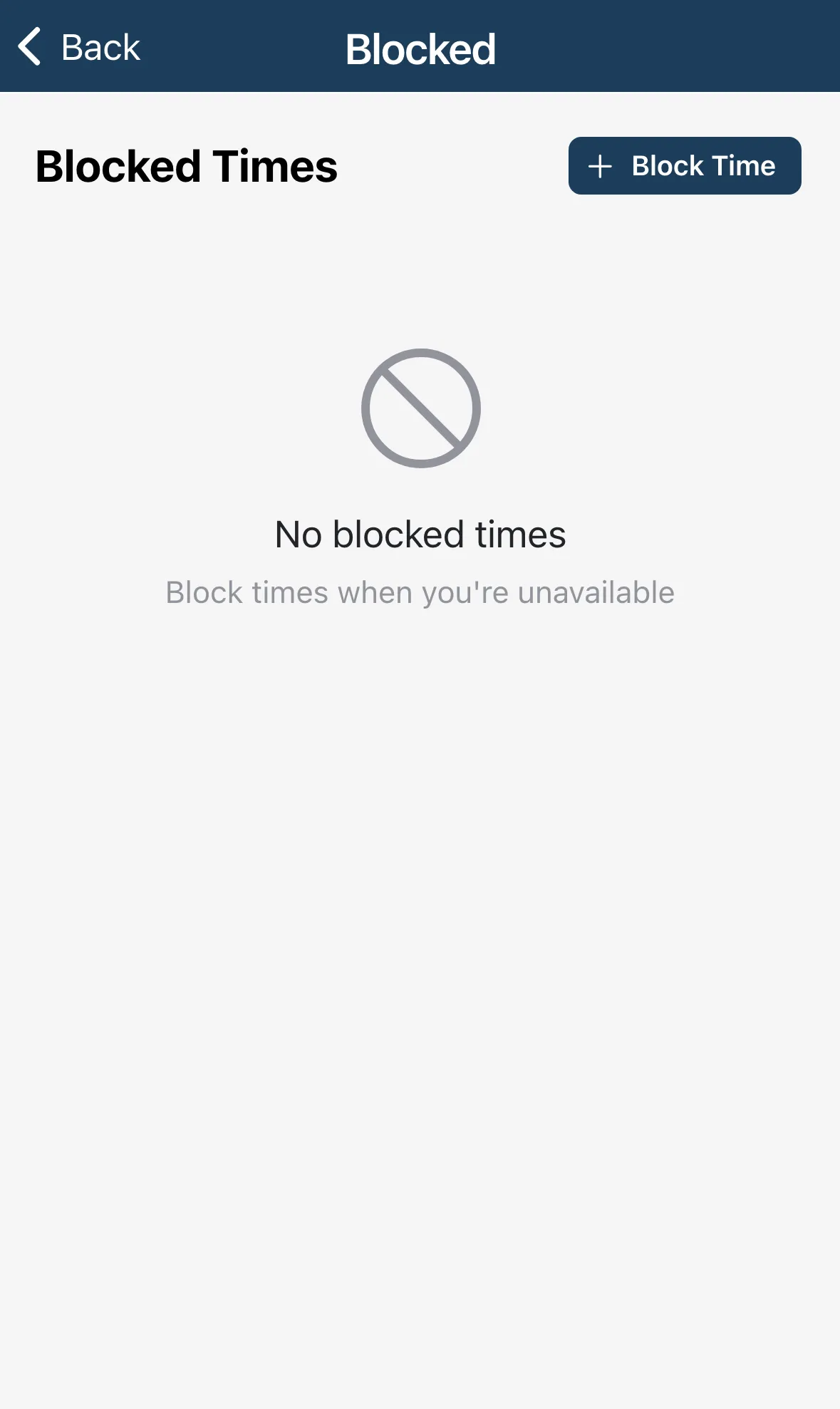
Tap the menu, then Settings, then Blocked Times.
-
Tap Block Time.
-
Enter a reason, pick the date and times, and choose how often it repeats.
-
Tap Save.
The form is the same one the calendar uses, including All day and the repeat options.
Change or delete a block
Section titled “Change or delete a block”Each block shows its date, hours and reason, with a badge such as Weekly if it repeats. Tap one to edit it, or tap … to delete it.
For a repeating block the … menu has two choices:
- Delete This Event Only removes one date.
- Delete All Events in Series removes every date in the series.